With the COOKmate extension, you can save a recipe you find on any website to your COOKmate account in one click. It works with Google Chrome and Mozilla Firefox.
Install the extension
On Google Chrome
- Open the COOKmate page on the Chrome Web Store.
- Click Add to Chrome.
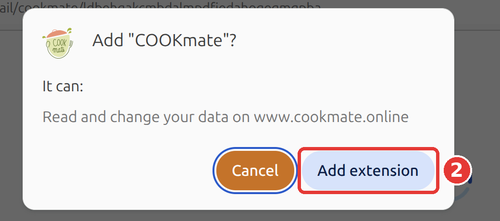
- Click Add extension.
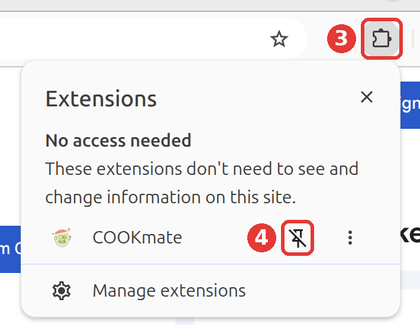
- The COOKmate icon appears in your toolbar. If you don’t see it, click the puzzle piece icon, then the pin next to COOKmate.

On Mozilla Firefox
- Open the COOKmate page on Firefox Add-ons.
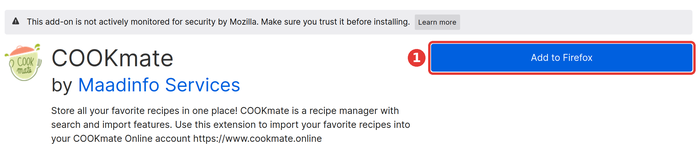
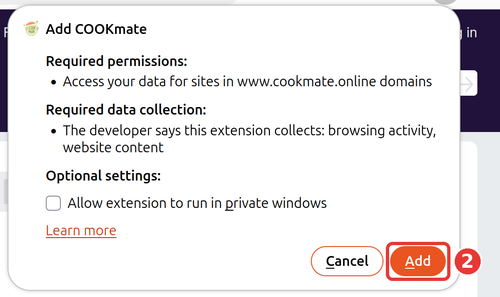
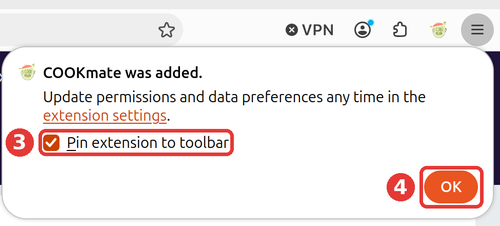
- Click Add to Firefox, then Add.
- Tick Pin extension to toolbar, then click OK.
Firefox shows a notice saying the add-on is not monitored by Mozilla. This is normal for most extensions: COOKmate is published by the COOKmate team.
Save a recipe
- Open the recipe you like on any website.
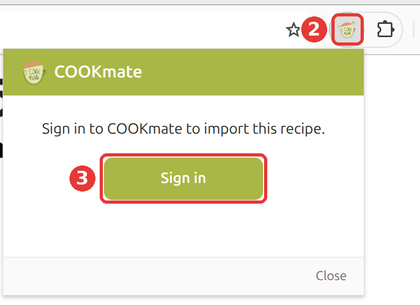
- Click the COOKmate icon in your toolbar.
- The first time only: click Sign in, then sign in to your COOKmate account.
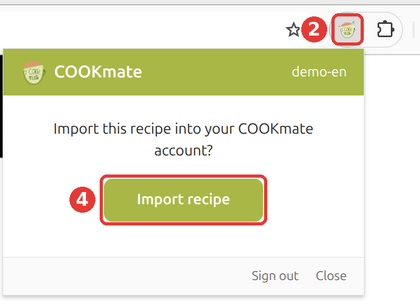
- Click Import recipe.
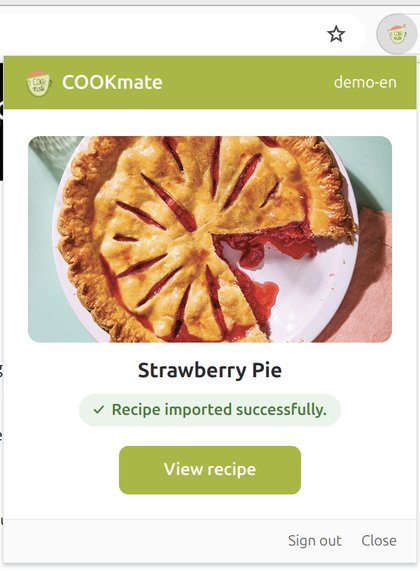
- The recipe is now in your COOKmate account. Click View recipe to open it.
No COOKmate account yet? Create one for free.
Good to know
- Already saved this recipe? COOKmate tells you, and View recipe opens the copy you already have.
- You can close the COOKmate window while the recipe is importing: it is still saved.