Your recipes are in COOKmate, and now your AI assistant can use them. Connect your account to Claude or ChatGPT, then ask what to cook with what you have, what is on your meal plan, or to prepare your shopping list.
No COOKmate account yet? Create one for free.
What you can ask
Your assistant looks in your own COOKmate collection. These examples are a good place to start:
Find a recipe
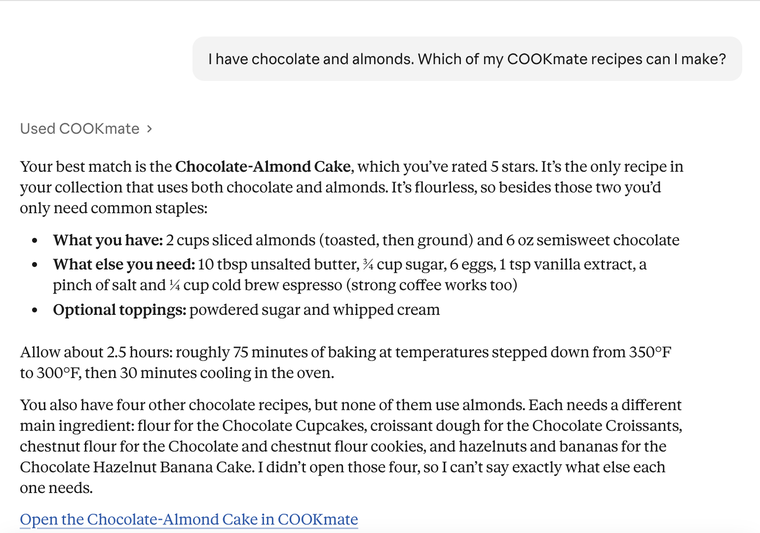
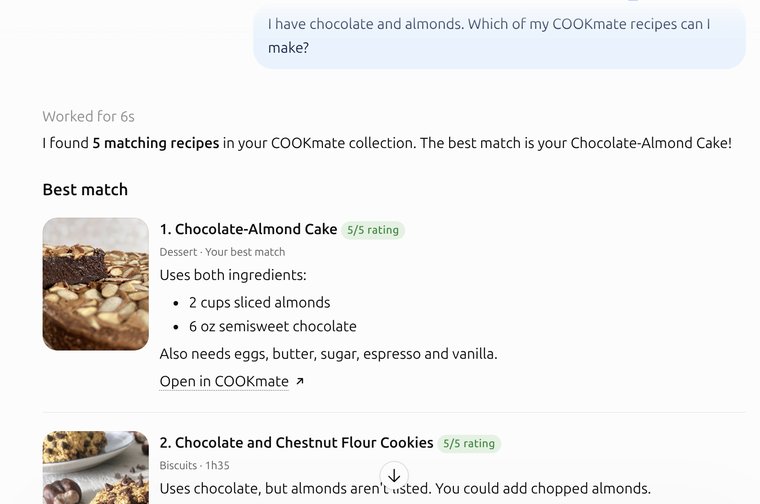
- I have chocolate and almonds. Which of my recipes can I make?
- List my 5-star recipes, most recent first.
- Suggest a vegetarian dinner from my recipes.
Plan your meals
- What is on my meal plan this week?
- Plan the leek soup for Thursday dinner.
- Move Thursday dinner to Friday lunch.
Do the shopping
- Add the ingredients for this week’s meals to a new shopping list.
- Add the Chocolate-Almond Cake ingredients to a new shopping list.
- Check off the eggs and the milk on my shopping list.
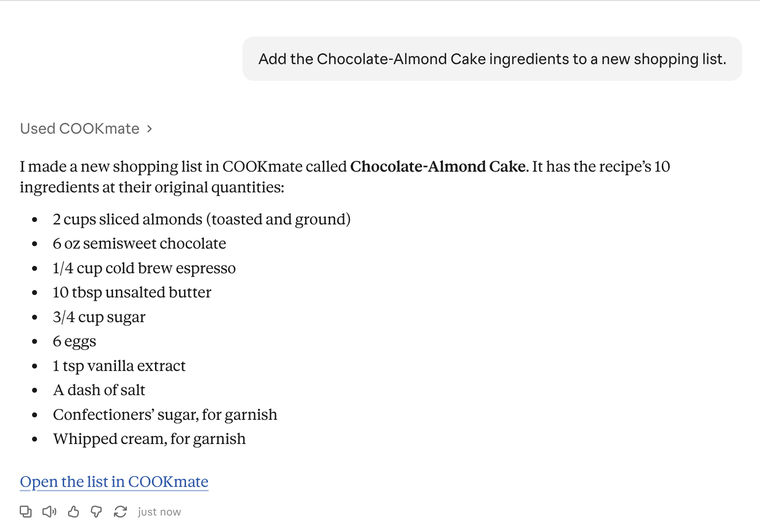
Asking about your recipes, meal plan and shopping lists is free. Changing your meal plan and shopping lists requires COOKmate Premium.
The connector address
Select and copy this address. You will paste it into your assistant in the next steps:
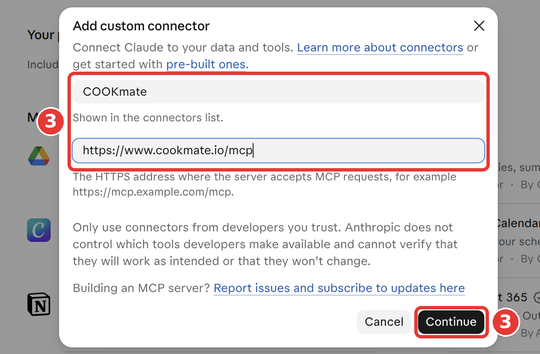
https://www.cookmate.io/mcpAdd COOKmate to Claude
Use claude.ai or the Claude desktop app. Once it is added, COOKmate is also available in the Claude mobile app.
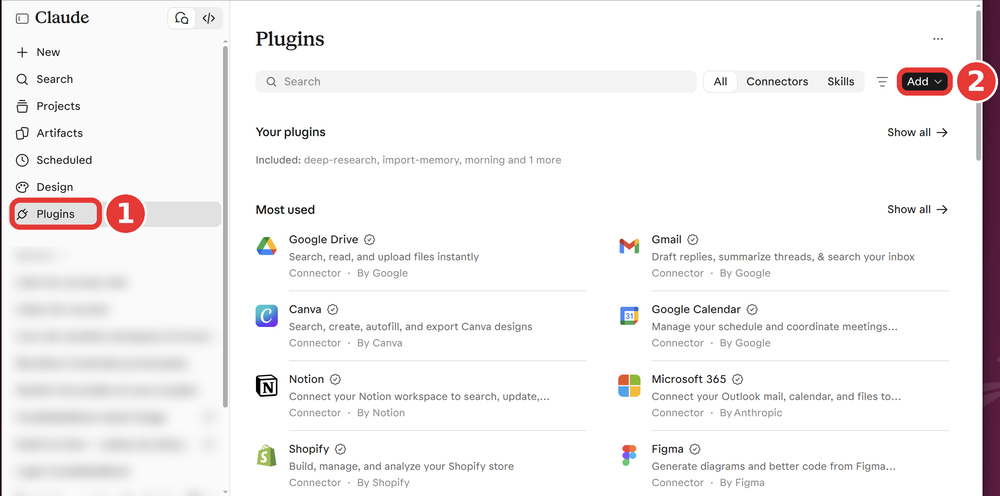
- Open Plugins in the side menu.
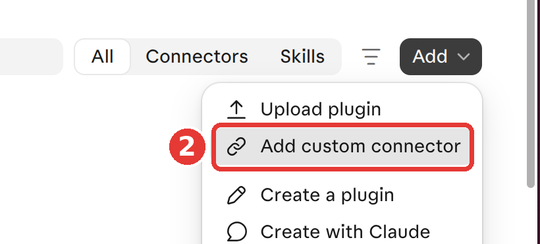
- Click Add, then Add custom connector.
- Enter COOKmate as the name, paste the connector address under MCP server URL, then click Continue.
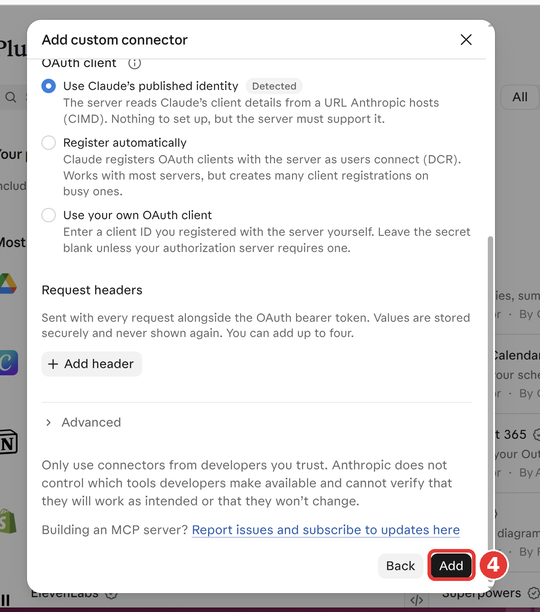
- Leave the options as they are and click Add.
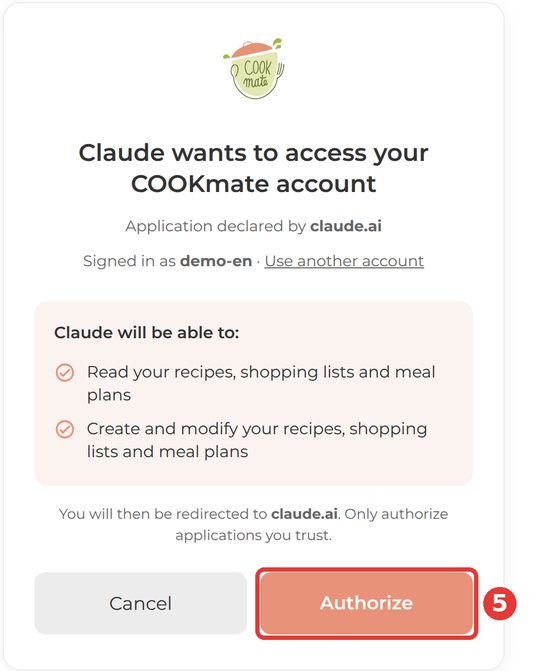
- Sign in to your COOKmate account. COOKmate shows Application declared by claude.ai: this is Claude asking for access. Click Authorize.
You are ready. Start a new chat and ask your first question.
Add COOKmate to ChatGPT
Use chatgpt.com. A free ChatGPT account is enough.
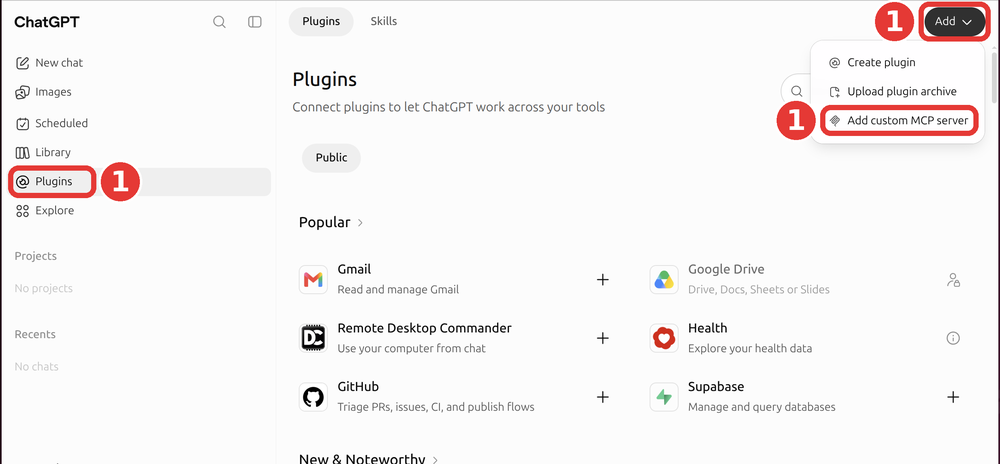
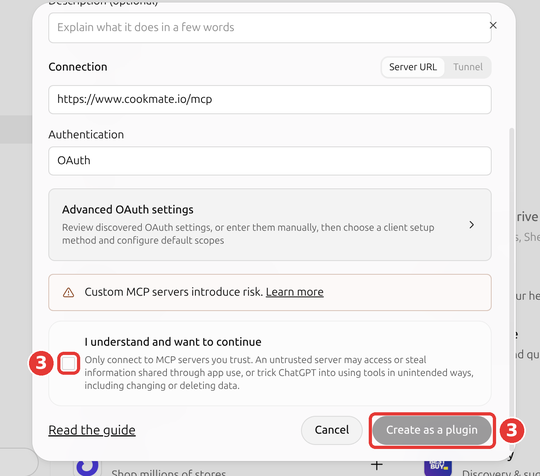
- Open Plugins in the side menu, click Add, then Add custom MCP server.
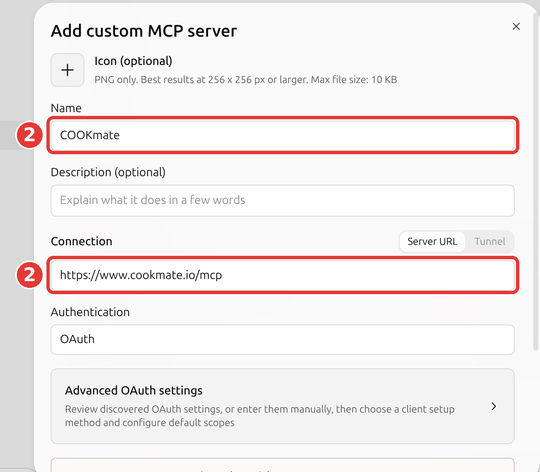
- Enter COOKmate as the name and paste the connector address under Connection. Leave OAuth as the authentication.
- Check I understand and want to continue, then click Create as a plugin.
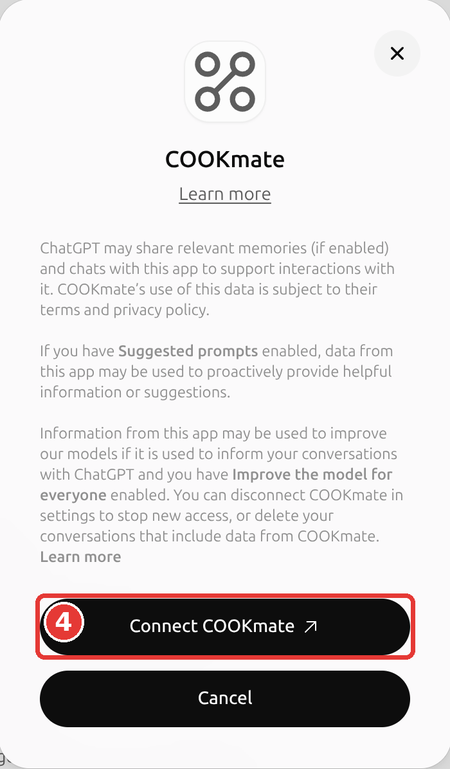
- Click Connect COOKmate.
- Sign in to your COOKmate account if asked, then click Authorize, as for Claude.
You are ready. Start a new chat and ask your first question.
Good to know
- If your assistant searches the web instead, add “in my COOKmate recipes” to your question.
- For now, your assistant does not change or delete your recipes.
- To disconnect, remove the connector in your assistant. Changing your COOKmate password disconnects all assistants.